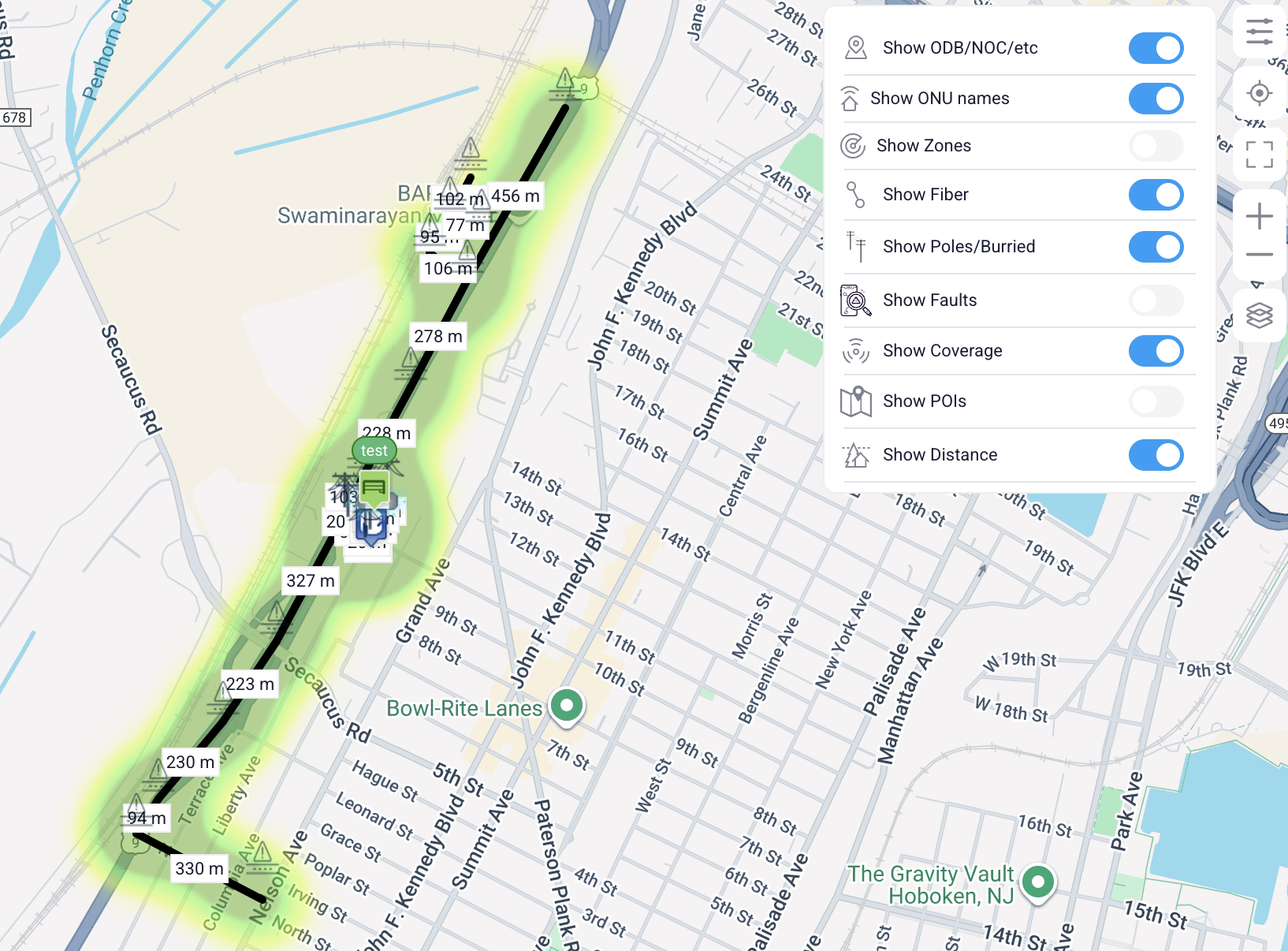
Xelynx has developed a way for comapnies to manage and monitor their critical infra-structure (Fiber cables, OBD, ONUs, etc) and built AI into reporting a lot of details from it. Now AI can predict the area where there is a fiber cut. Theres a lot of R&D into it and we have found a very intuitive way to do all of this.
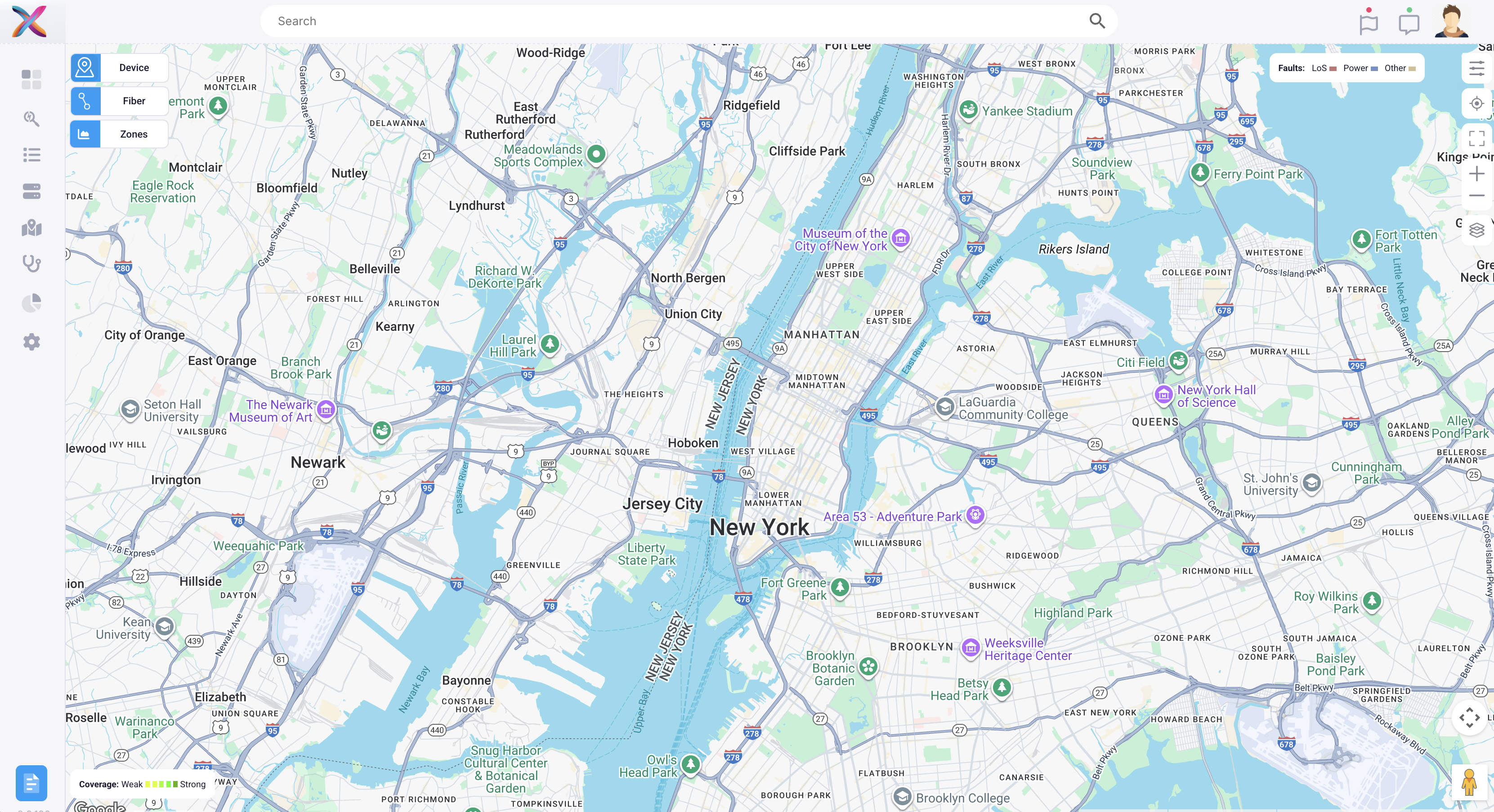
On Xelynx maps, a few things work differently. For example, the search bar on top actually searches on maps.
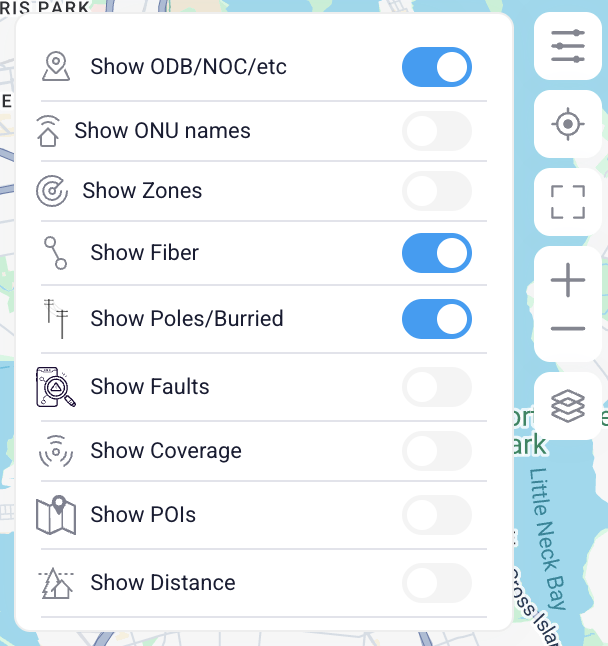 |
Show ODB/NOC/etc: This shows and hides ODBs and NOCs/POPs etc on Xelynx Maps. Show ONU names: Shows/Hides names of all ONUs and their status is reflected from the colour of the names background color. Show Zones: Shoes/Hides Zones created on Xelynx Maps. Show Fiber: Shows/Hides fiber optics on Xelynx Maps. Show Poles/Burried: Shows/Hides Poles/contours. Show Faults: Shows/Hides Faults. AI parses all data available and predicts the infra-structure where there is a fiber cut. Show Coverage: Shows/Hides coverage of your network. Show POIs: Shows/Hides Point of Intrests on maps. Show Distance: Shows/Hides distance of fiber between elements deployed. |
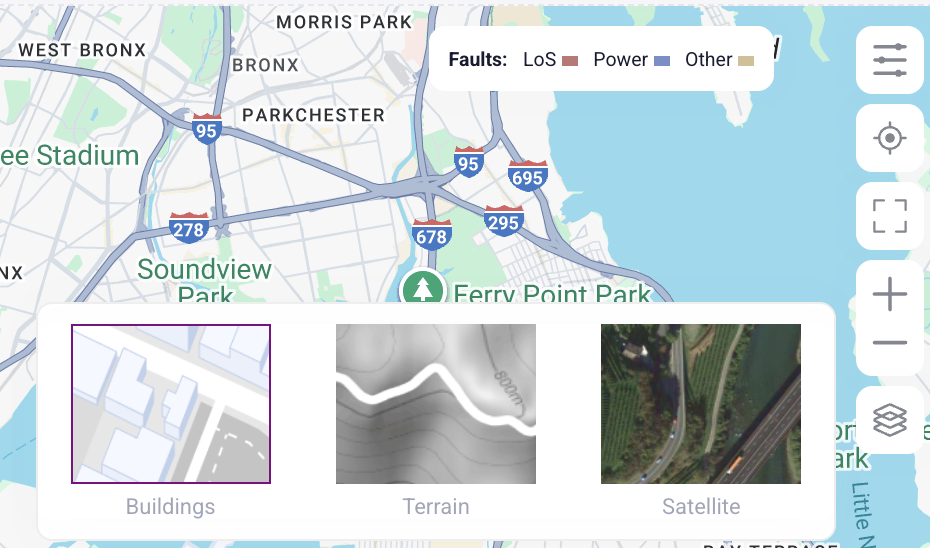 |
Map's Terrain: You can switch between multiple terrain types available on Xelynx Maps. |
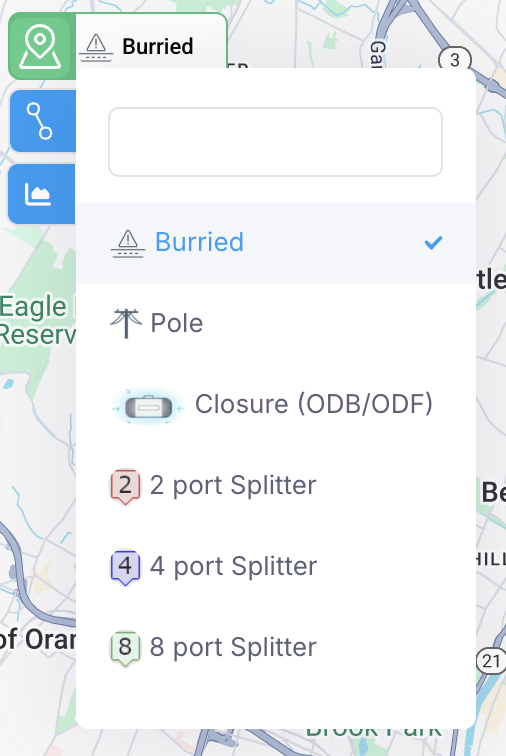 |
Fiber elements: This is a list of available fiber elements which you can deploy as your fiber network infra-structure.. |
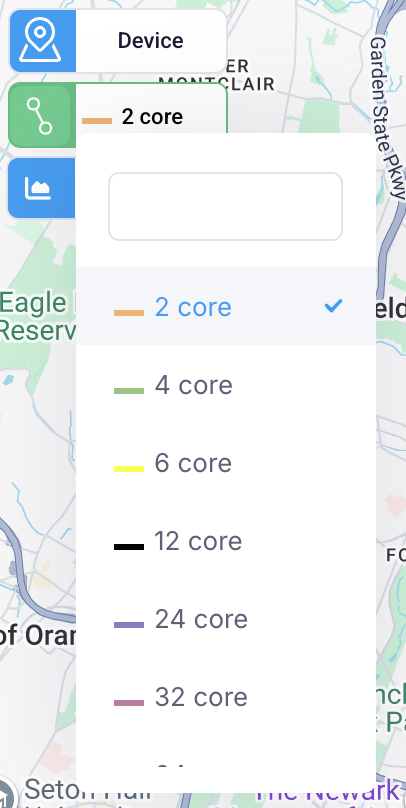 |
Optical fiber cable: You can select optical fiber cable with different number of cores and they are differentiated by their color. |
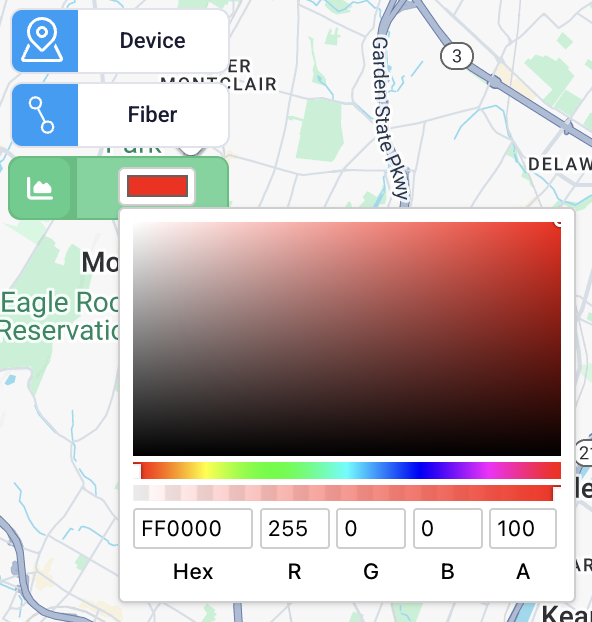 |
Zones: You can select color for zone you will be creating. This makes it easy to distinguish between different zones. A name can be assigned to the zone fron its settings. |
First you need to select the element (NON, POP, Closure box, ODB etc.) from the menu on top left. Then select the fiber from the menu below it. Then click on the map where you want to put it.
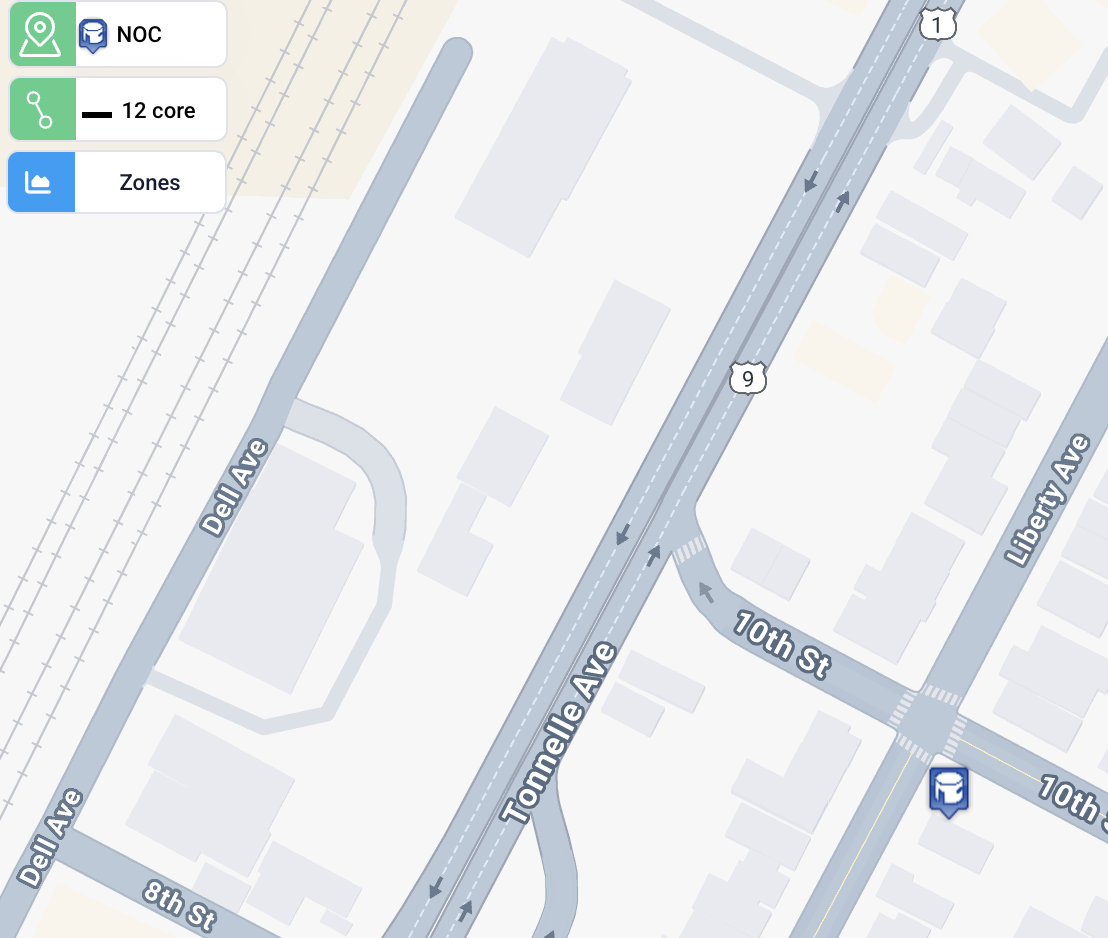
Select the element (NON, POP, Closure box, ODB etc.) from the menu on top left. Then select the fiber from the menu below it. Then click on the first element on the map if it exists already else new item will be created. Click on the second element if it exists else new element will be created and both elements will be connected with the fiber you have selected.
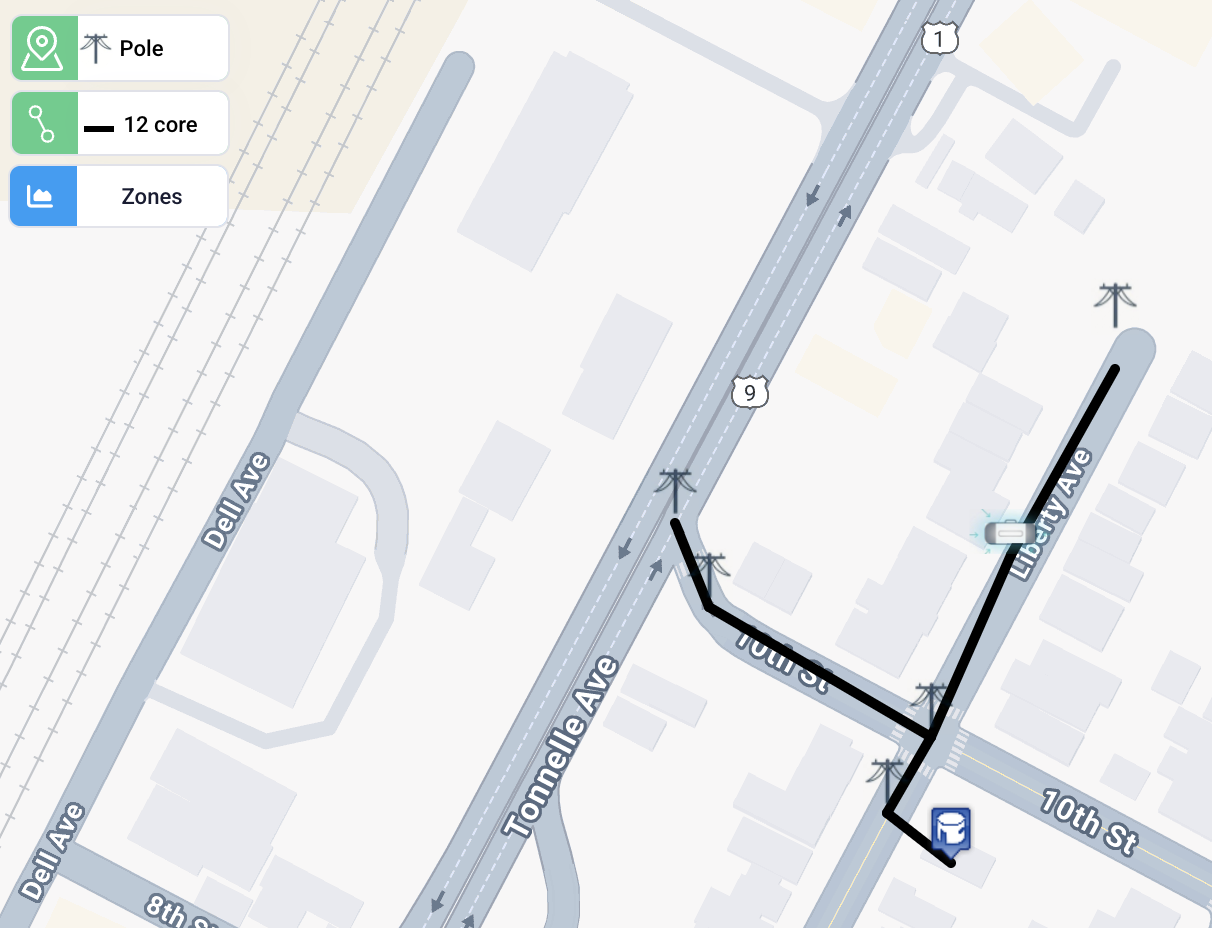
To set or get information about an element, double click on it and a menu will open from left side.
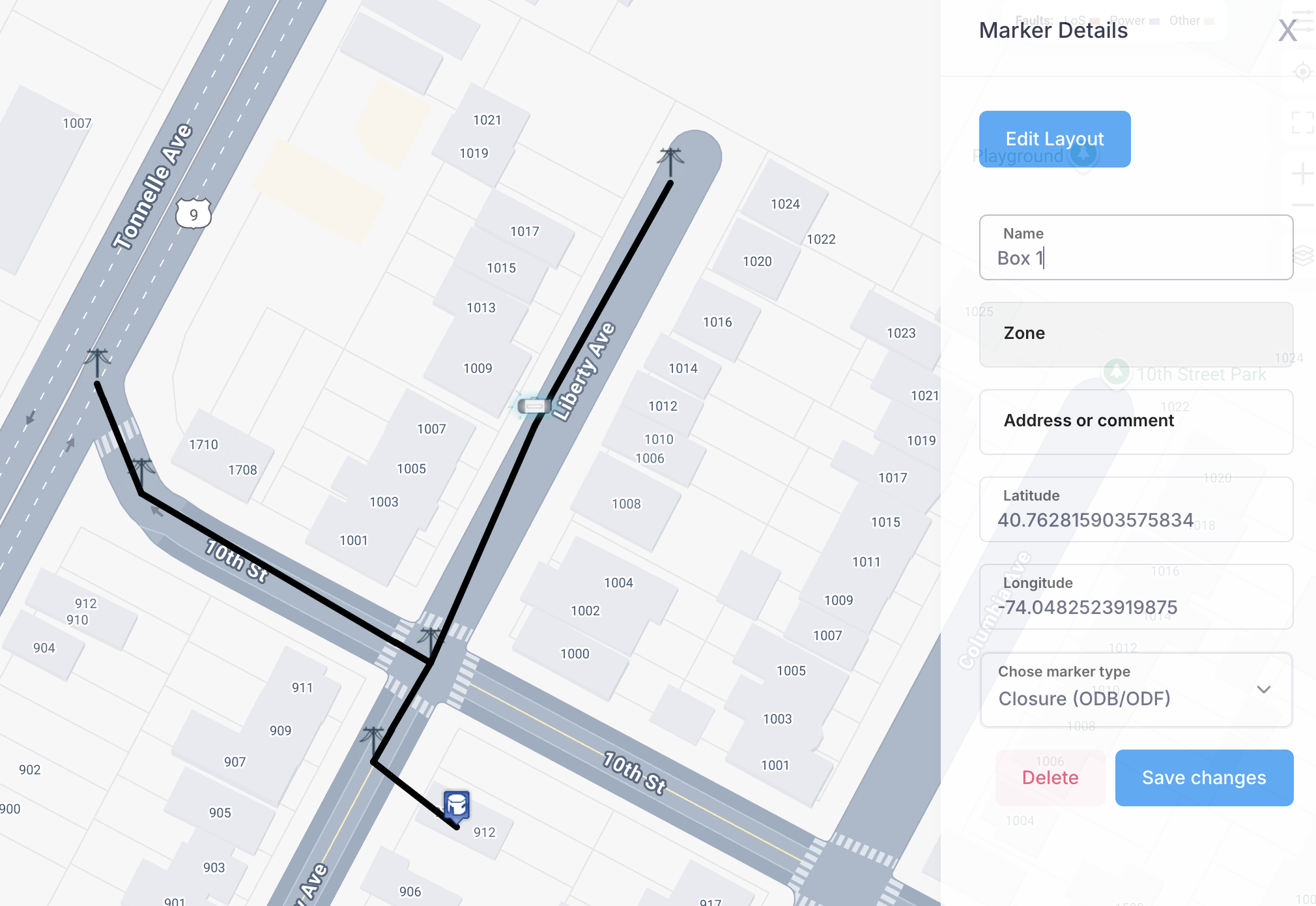
You can delete the element by right-clicking on it or from the menu opened when you double click on it.
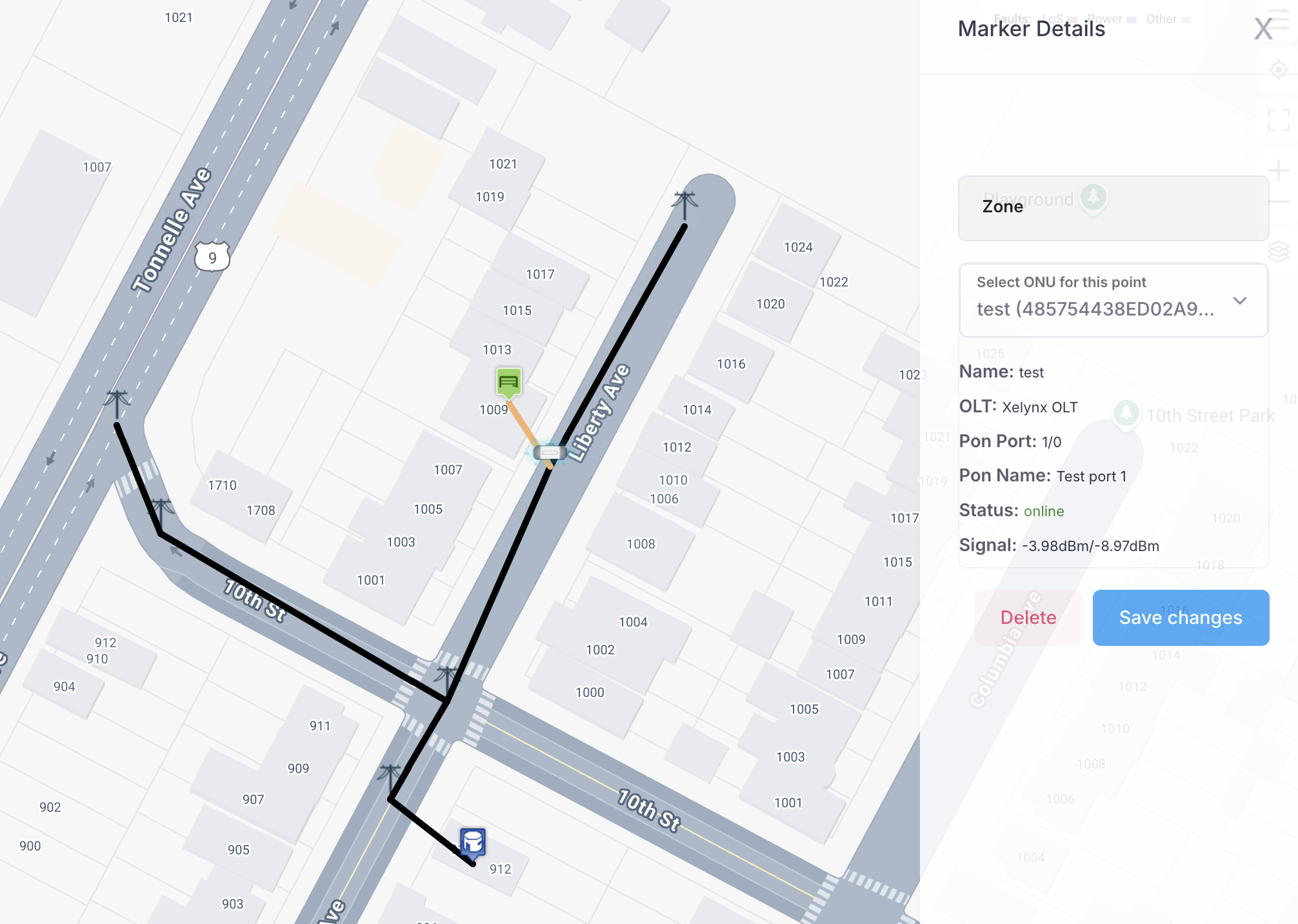
Select the ONU marker from the l=top left menu. Select fiber you have used to connect it. Place the marker on the map.
Double click on the ONU marker and select the corresponding ONU from the dropdown list. Save it.
Click on "Edit Layout" opened when you double click on the element. Following screen will come up.
You can drag and drop the coupler or click on "Add" button to add the selected Splitter.
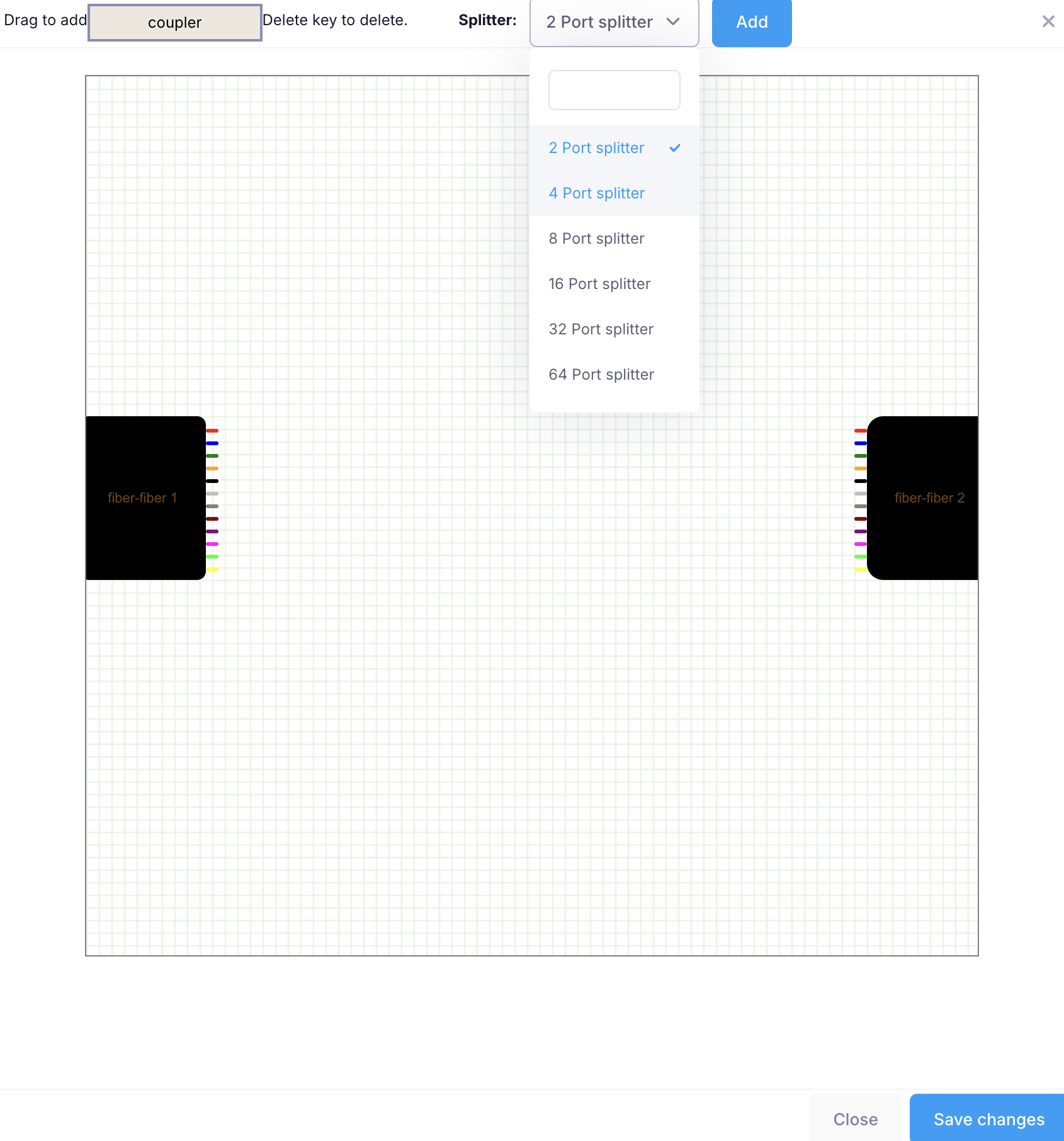
To change the color of the core, click on the core and a pop-up will come up. You can select any color which matches the eact color.
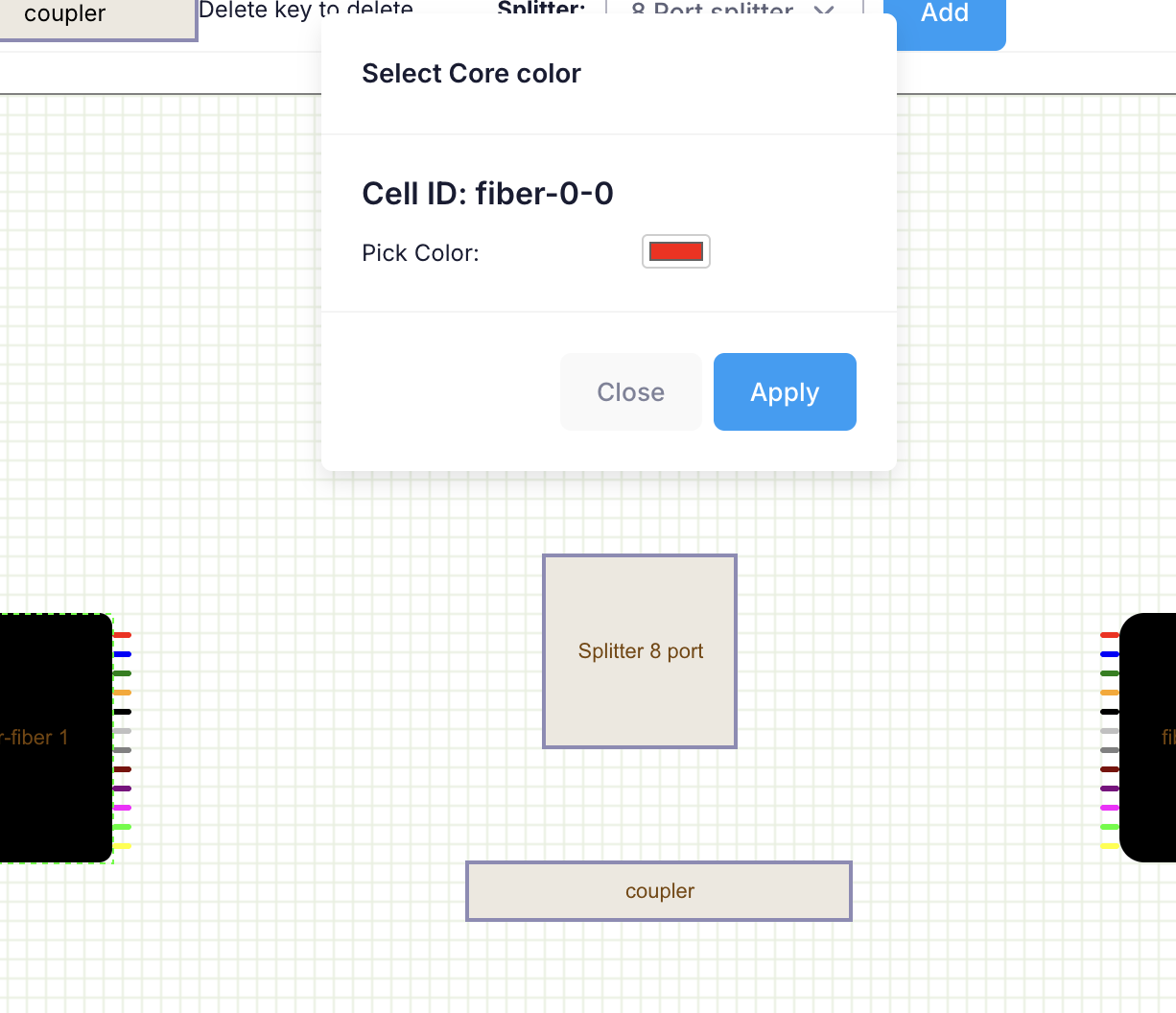
To change the name of the item, click on the item label and set the name to your liking.
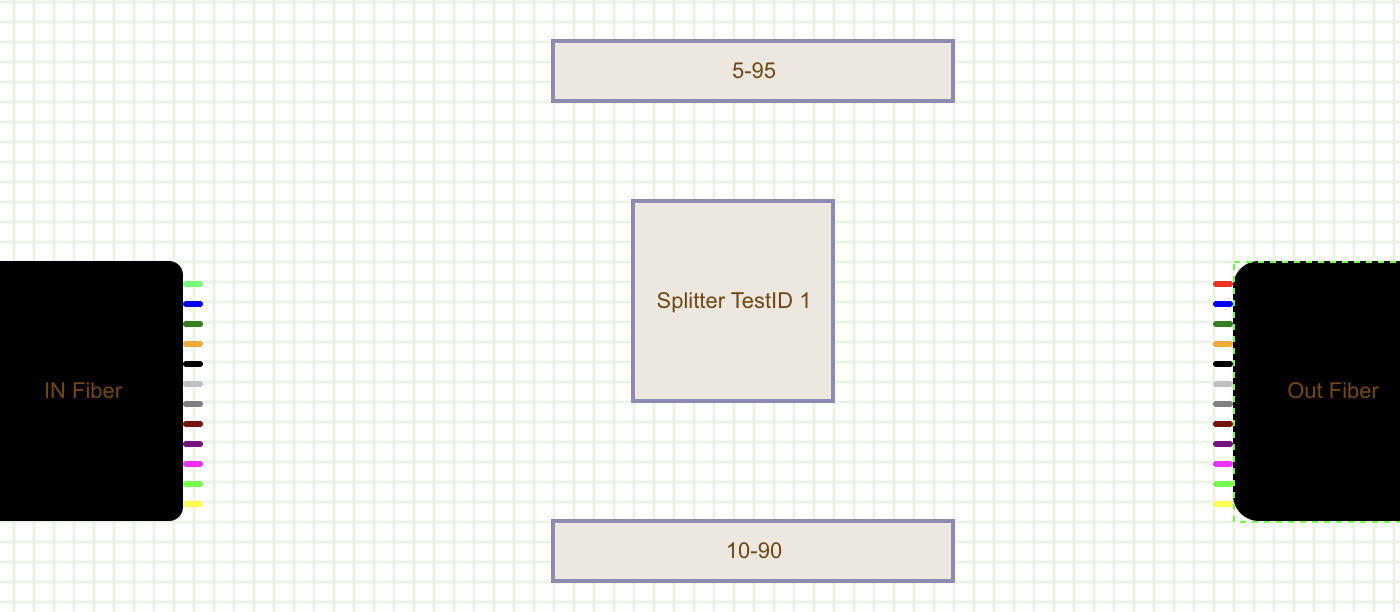
Drag from core to the point you want to link it to. You can set a label to each for future references.
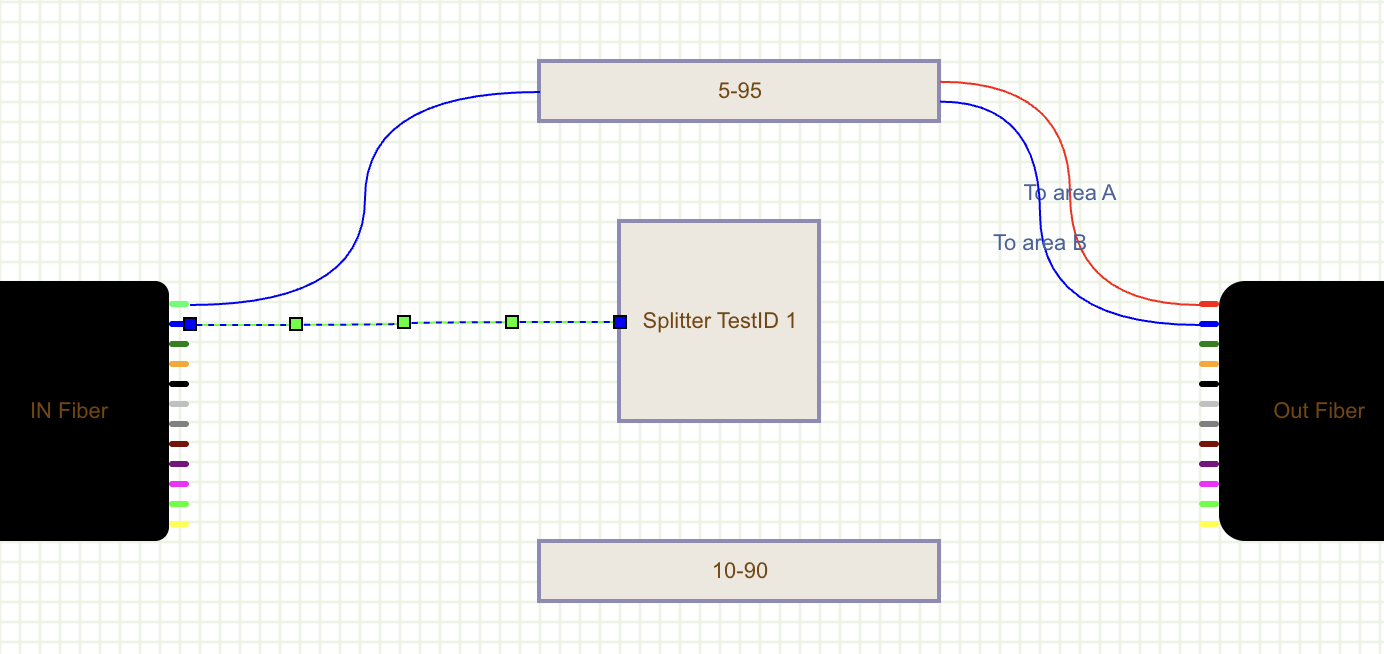
You can delete the core connection by selecting the connection and pressing "Delete" button on your keyboard or "fn + Delete" on your Mac..
Click on "Save changes" to save it to the database.
Details will be displayed on the map when these options are enabled on top right menu.